Google Chat is the primary instant messaging tool within Google Workspace, integrating seamlessly with Gmail and Drive to manage workflows and Spaces.
While Google requires phone verification for security purposes, linking your personal number can blur the line between your professional and personal life.
The most effective way to bypass this requirement safely is by creating your account using an authentic US number from the Non-VoIP platform
Quick Summary (TL;DR):
To create a Google Chat account without a phone number, the process simply requires logging into the Non-VoIP dashboard, selecting the "Google Chat" service
choosing a server that fits your budget, and entering the assigned number into Google to receive your verification code (SMS) instantly on your console, supported by an automatic refund policy if no message arrives.
Why is a Temporary Number the Best Option for Google Chat?
Using this method offers several significant advantages, especially for an application like Google Chat:
- Separating Professional Communications: You can create a Google account dedicated entirely to work, use it to download business apps by creating a Google Play account without a number, or even activate additional services like Google Voice without linking any of them to your personal number.
- Enhanced Privacy: You avoid linking your private phone number to Google’s vast database, which reduces your digital footprint.
- Guaranteed Acceptance: Non-VoIP numbers are real, not virtual, which ensures they are accepted by Google’s strict verification systems.
- Reuse Capability: The platform offers a "Reuse Number" feature if Google requests consecutive security verification codes during setup.
How to Create Google Chat Account Without Phone Number
The process of creating Google Chat account without phone number is straightforward and is done in two stages:
Stage 1: Allocating the Number on Non-VoIP
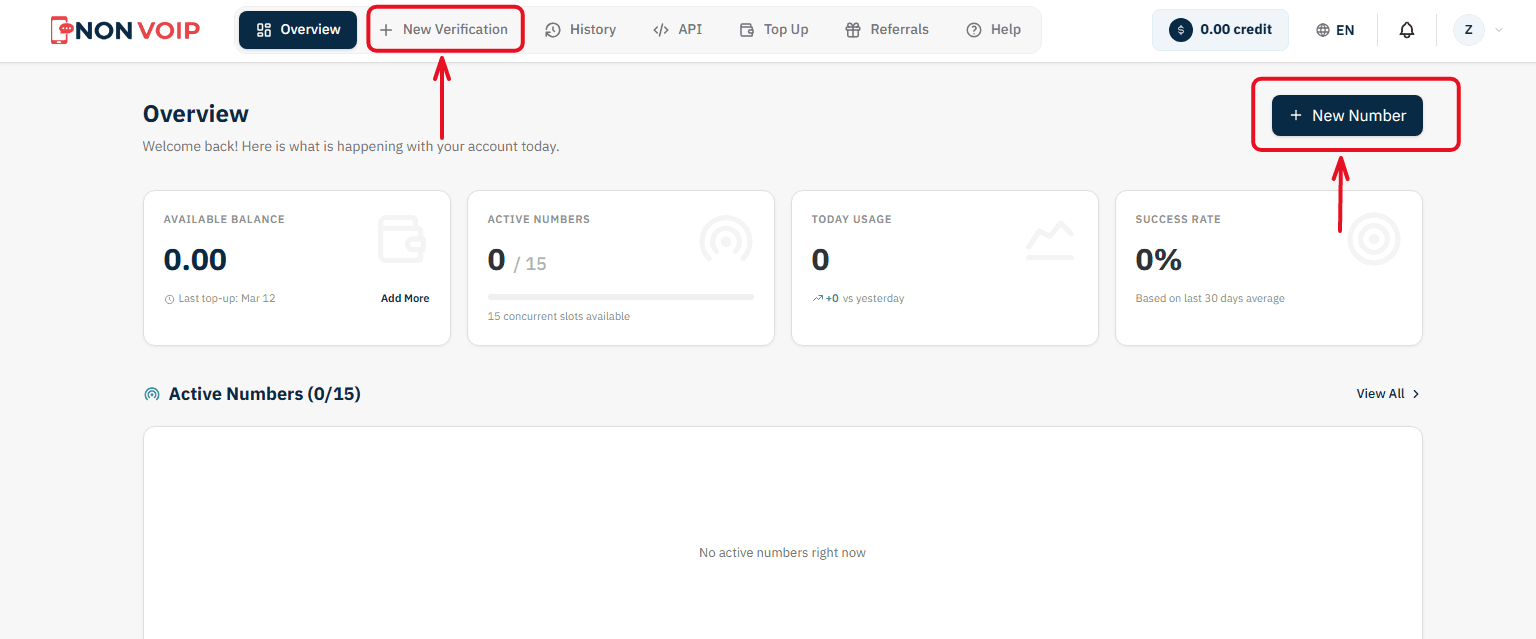
Start the Order: Log in to your dashboard and click "New Verification" or "New number".
Select Service: Search for and select "Google Chat".
(You can click the star icon next to it to add it to your "Favorites" list for quick access later).Choose Country: Select the United States.
Choose Server: The platform will display several available servers for this service (e.g., Server 1, Server 2). Each server details the cost, validity period, and support for additional features like reuse. Choose the server that fits your budget.
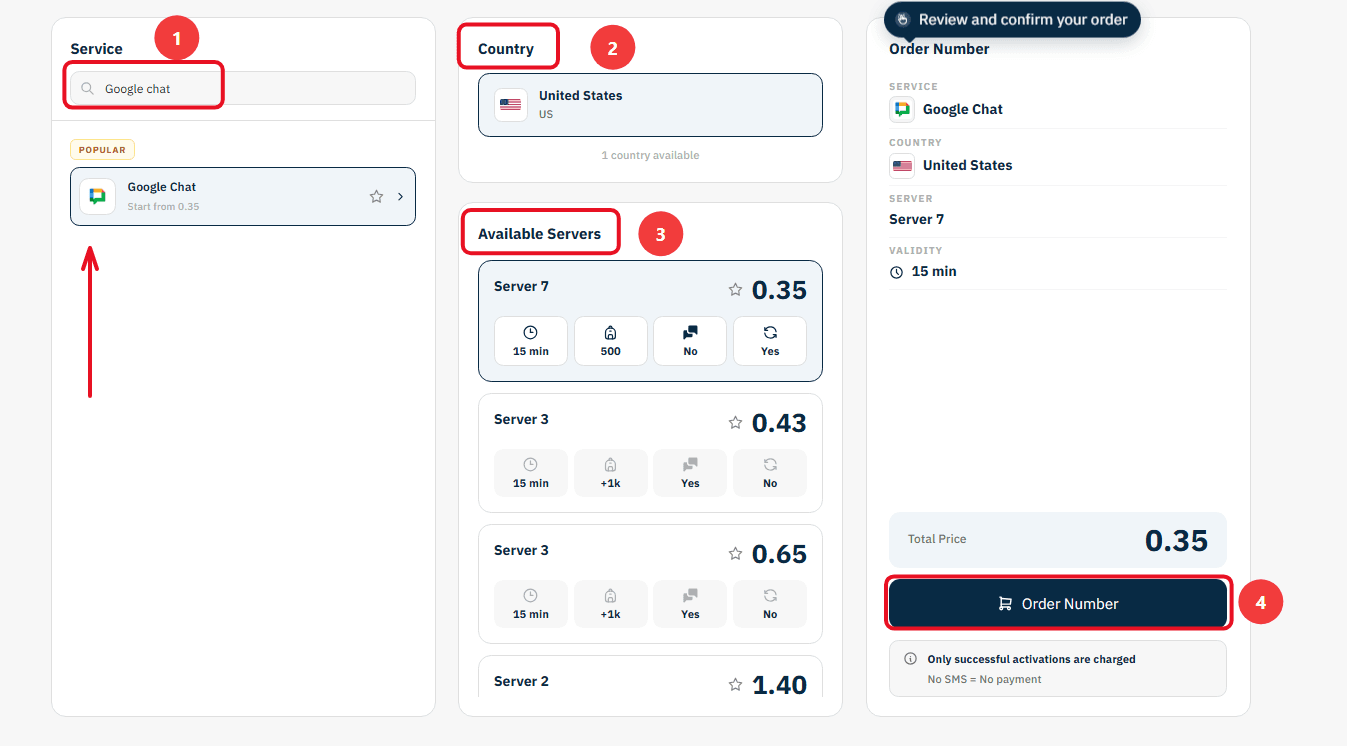
Confirm Order: Review the order summary and click "Order Number" to instantly reserve your line and begin the countdown.
Stage 2: Completing Phone Verification in Google Chat
Open Google Chat or Google account registration page and enter your basic details.
When prompted for phone verification, copy the US number from your Non-VoIP order card and paste it into the field.
Monitor your dashboard status card under "Awaiting SMS".
Once the code arrives in the "SMS Message" box, copy and enter it into Google to complete your account setup.
(Note: You have complete financial transparency. You can manually cancel the verification before code delivery, and if the countdown finishes without an SMS, your balance returns automatically under the "No SMS = No payment" rule).
In Conclusion:
You can now communicate via Google Chat without compromising the privacy of your personal information.
Follow the steps mentioned, get your verification number, and use the platform with confidence and security.