The Non-VoIP platform provides an advanced Application Programming Interface (API Dashboard) that allows developers and business owners to automate the process of requesting numbers and receiving SMS codes programmatically.
However, to use the API on Non-VoIP platform, your account must be eligible for access. This is achieved when the total cumulative top-ups in your account reach $250, turning the API status badge green (Available).
How to use the API on Non-VoIP?
The API Dashboard on the Non-VoIP platform is designed to combine technical power with ease of use, allowing you to seamlessly integrate the platform's services with your own systems.
To access this dashboard, simply click on the (API) tab located in the top bar of the platform.
Here is a simplified and comprehensive explanation of the API section:
Activation Condition: API Status Badge
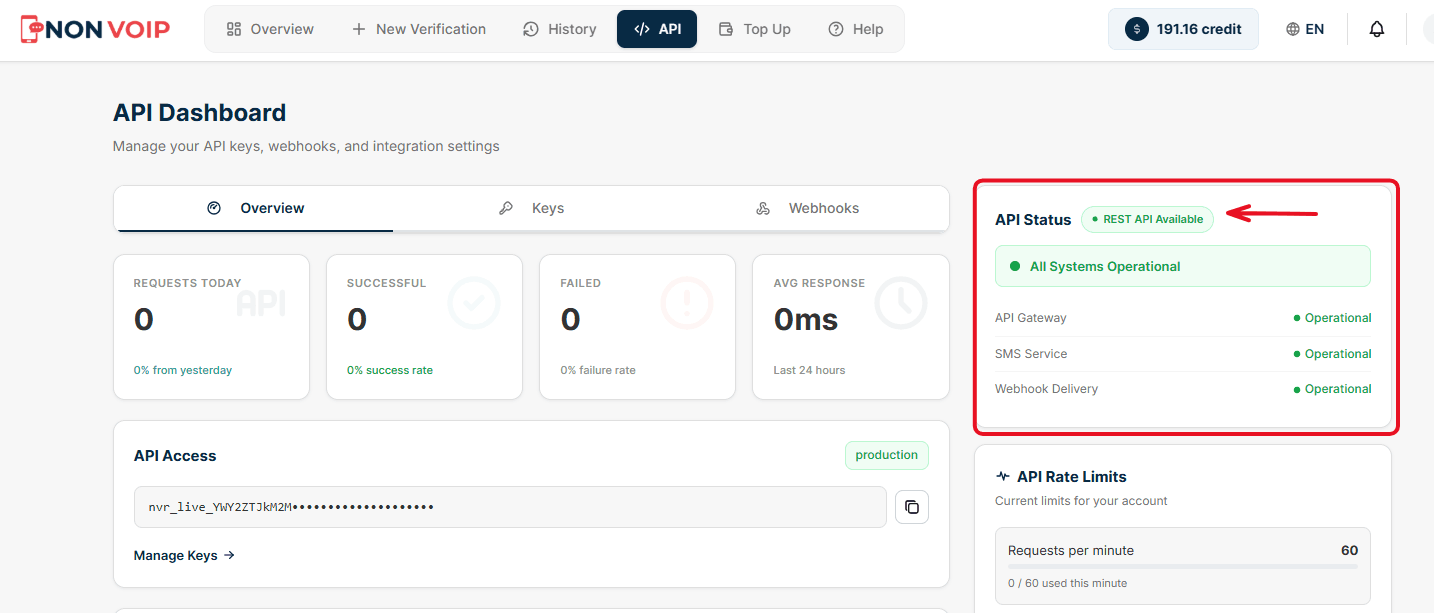
Before you begin, look at the top right corner of the screen where the (API Status) section is located. You will notice a badge indicating the service availability status (REST API Available).
Green Badge (Available): Means your account is fully eligible to use the API.
Red Badge (Not Available): Means the feature has not been activated yet. Activating this feature requires that the total top-ups in your account reach $250.
1. Overview Section
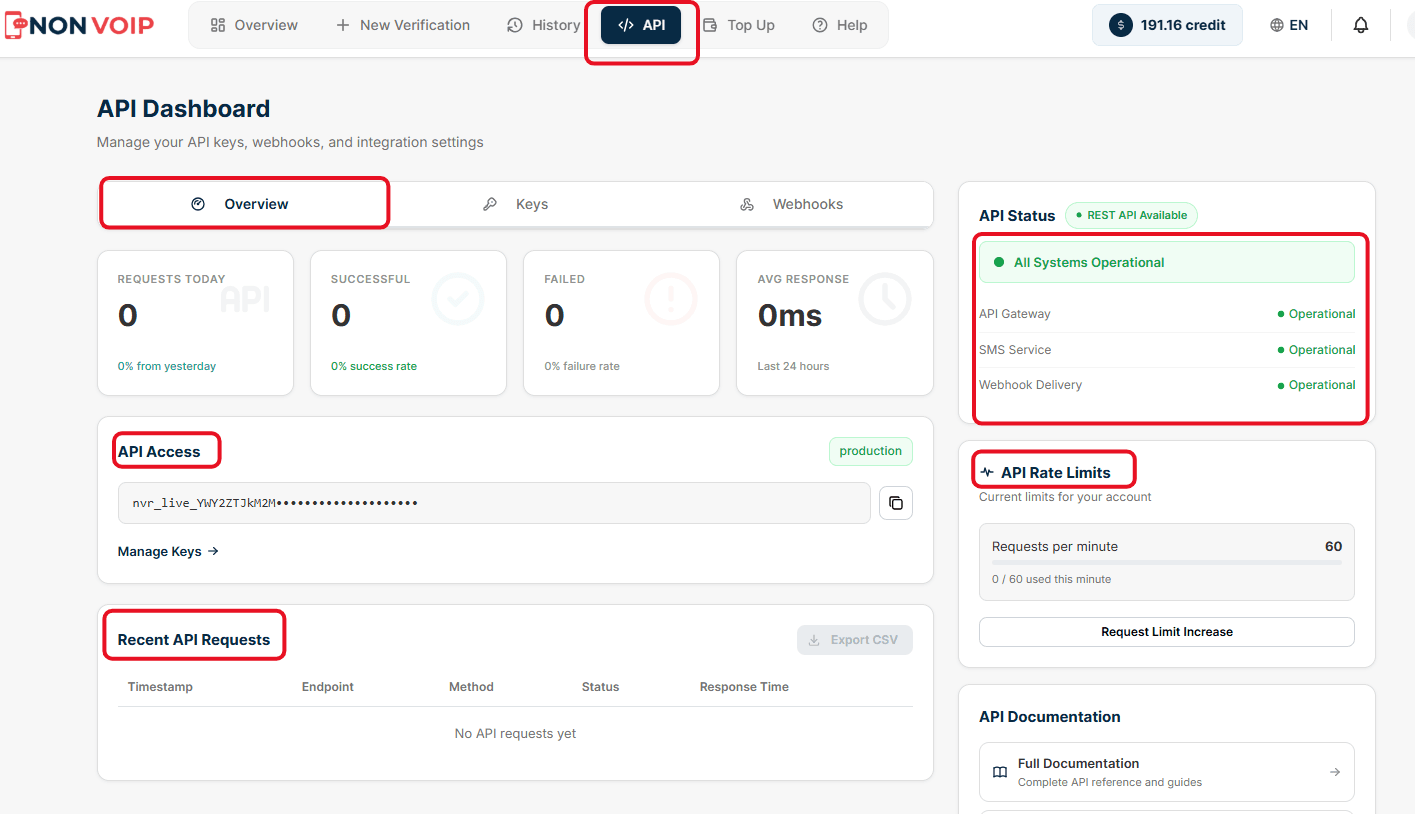
This tab is your monitoring center. From here, you can track the performance of your programmatic operations in real-time:
Request Statistics: Shows you total daily requests, success rate, and failure rate, in addition to response speed (which reaches fractions of a millisecond).
System Operational Status: Green indicators reassure you that the gateway, SMS service, and webhook delivery are operating at full efficiency.
API Rate Limits: Shows you the maximum number of requests allowed per minute (e.g., 60 requests/minute). If your project requires a faster pace, you can click the (Request Limit Increase) button to ask technical support to raise this limit.
2. Key and Security Management
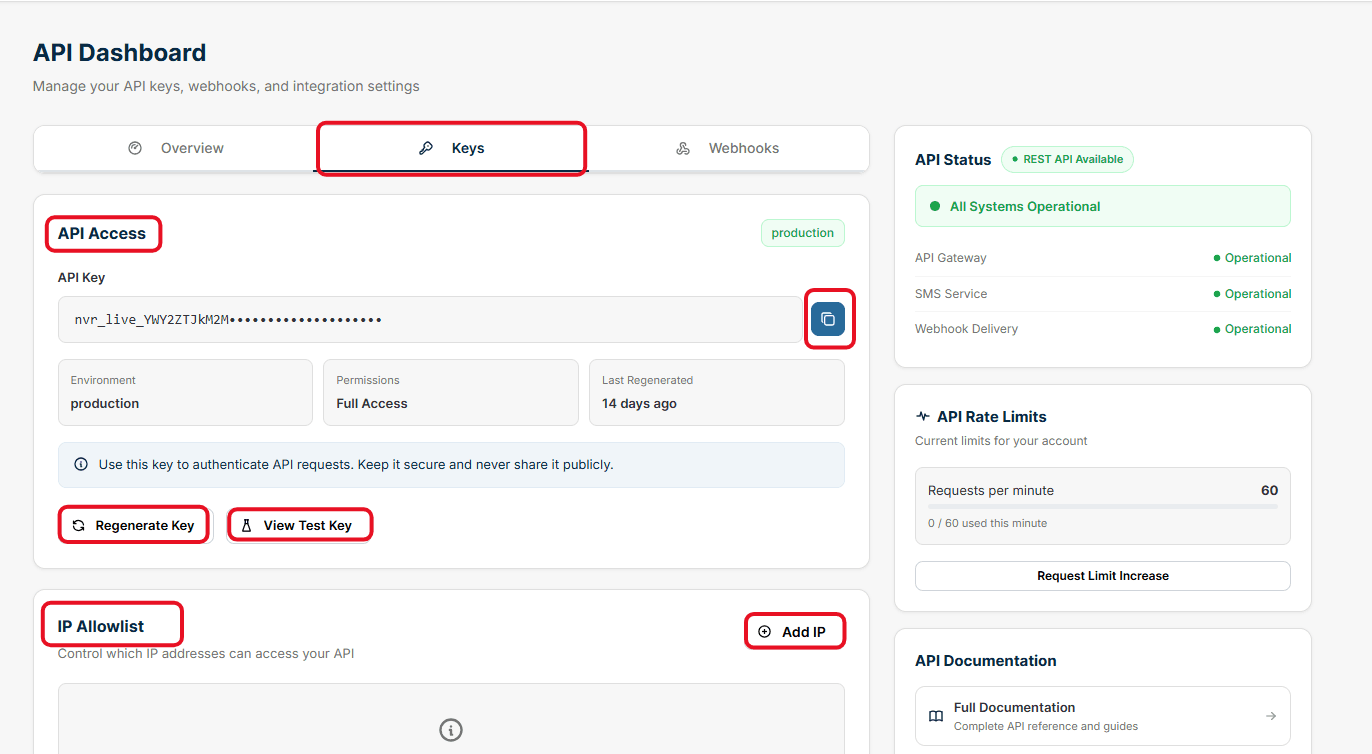
This section is the secure entry key for your system:
API Key: This is the secret code you will place in your software code to allow it to communicate with the Non-VoIP platform. You can click the copy icon next to it.
Regenerate Key: A very important button for security. If you feel your key has been leaked, click here to instantly generate a new key and invalidate the old one.
View Test Key: Allows you to view a special key for the Test Mode environment, which lets you test code without deducting any real balance.
IP Allowlist: To increase security, you can click on (Add IP) to add only the IP addresses of your servers, preventing any other device from using your API even if they have the secret key.
3. Webhooks
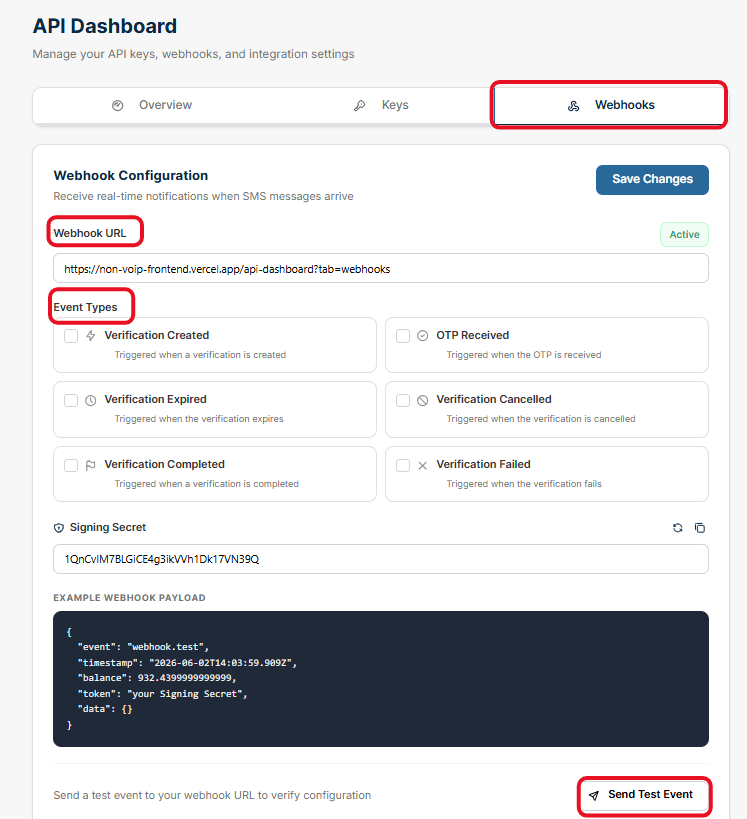
Instead of the application constantly asking the platform "Has the code arrived?", Webhooks send the code immediately upon arrival:
Webhook URL: Here you place the link to your website or application that will receive the notifications.
Event Types: You can check the boxes for only the events you care about, such as: Verification Completed, OTP Received, or Verification Expired.
Send Test Event: After setting up the link, click this button so the system sends test data to ensure the integration is working properly.
4. API Documentation and Practical Testing
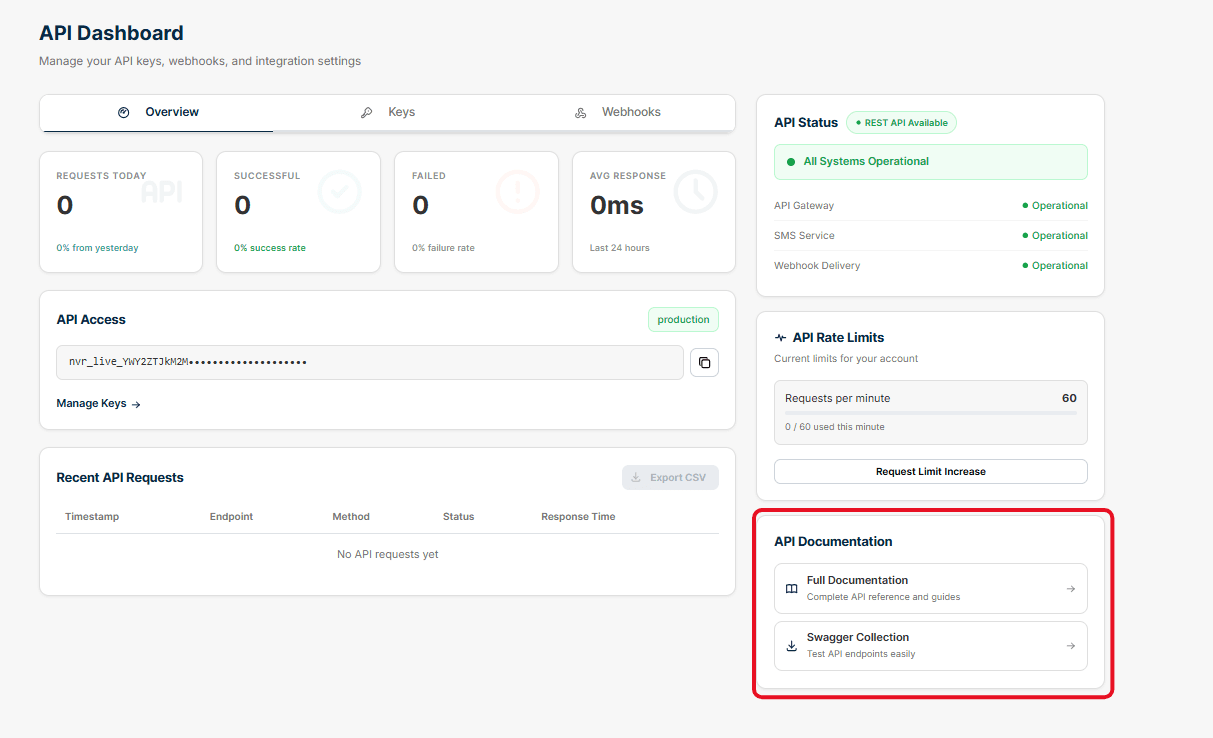
To facilitate the work of programmers, the platform provides integrated tools:
Full Documentation
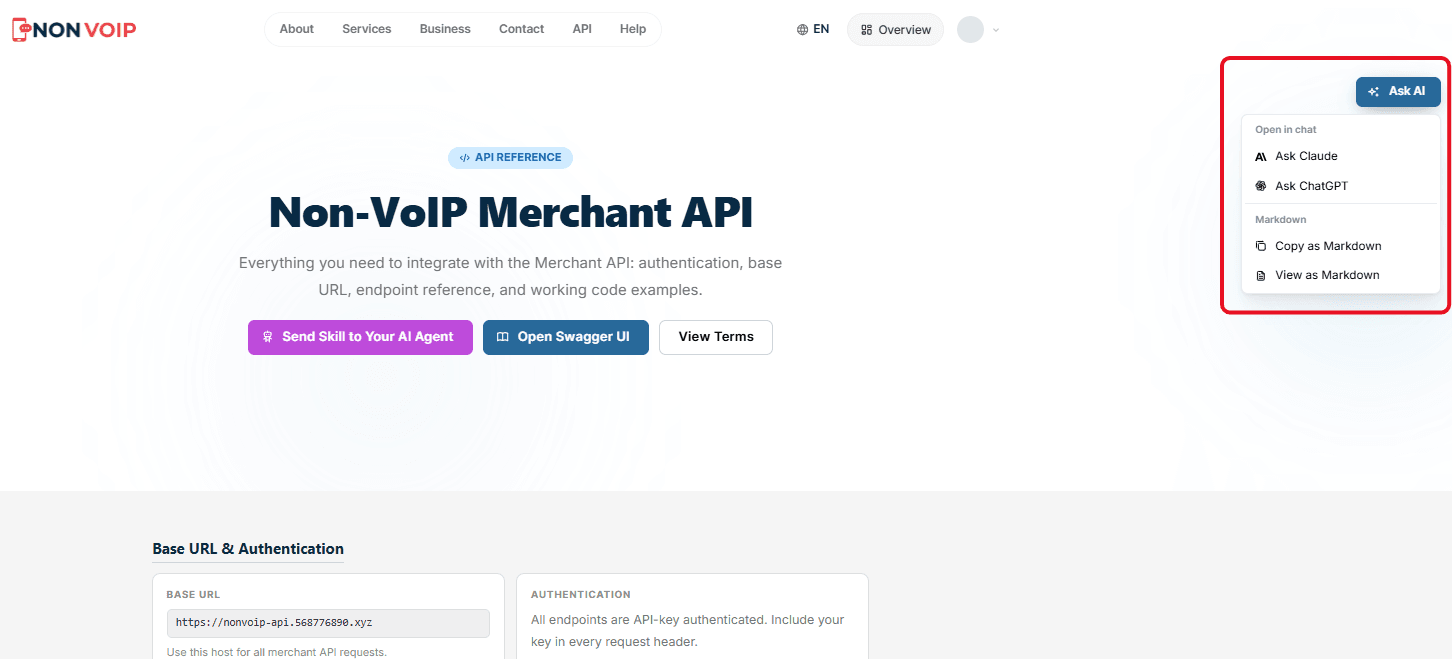
This button takes you to the official (Merchant API) documentation page, which contains everything you need to integrate with the Merchant API: authentication, base URL, endpoint reference, and ready-to-use code examples.
Ask AI Feature:
At the top of the documentation page, you will find a button named (Ask AI). Clicking it reveals a menu allowing you to directly ask AI models (Ask Claude or Ask ChatGPT) any questions regarding the platform's code.
You can also copy the documentation in Markdown format with a click of a button. This feature saves developers hours of research.
Swagger Collection:
A visual environment that allows you to test programming commands (like requesting a number or listing countries) directly from the browser to see the response format before writing any code.
Conclusion
Through use the API on Non-VoIP platform, you possess an integrated environment that combines ease of customization, high security via allowlists, and the intelligence of providing real-time notifications.
Ensure you meet the top-up conditions ($250) and step forward to automate your business